In love with good-looking and easy-going letters
I fell in love with Google fonts on first sight. Ever since, I have been using Google’s free web fonts in each of my website projects and designs.
Prior to the creation of this online directory, users could only see a specific font on a website, if it was installed on their device. Otherwise the font defaulted back to a standard sans-serif or serif one. This is still the case today, unless a website designer refers to Google fonts in his code.
Google about Google Fonts
“A web with web fonts is more beautiful, readable, accessible and open.”
“Our goal is to create a directory of web fonts for the world to use. Our API service makes it easy to add Google Fonts to a website in seconds. The service runs on Google’s servers which are fast, reliable and tested. Google provides this service free of charge.”
“All of the fonts are Open Source. This means that you are free to share your favorites with friends and colleagues. You can even customize them for your own use, or collaborate with the original designer to improve them. And you can use them in every way you want, privately or commercially — in print, on your computer, or in your websites.”
Doesn’t this sound great? Well it is, and including the code for Google fonts in a website project is a piece of cake!
How it works
The beauty of Google fonts is that they are all stored on Google’s server. The designer links to the respective font in his code and the server sends the information about the font back to the users when he views the website. This way, neither user or designer has to have a specific font installed on his device. Instead, both of them communicate via a third player: the Google server.
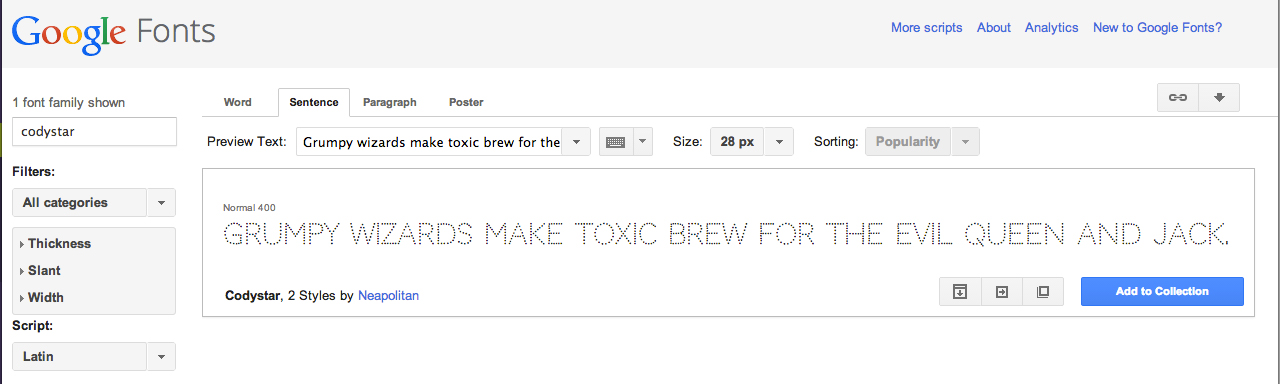
How to add the code
- Visit www.google.com/fonts and browse through the vast collection of free fonts. Use the filters on the left hand side to sort by categories.
- Pick a font, for example Codystar by Neapolitan.
- Next, click on the Quick-use button.
From here, it’s easy and the application guides you through the process step-by-step (Source: Google Fonts):
- Choose the styles you want, for example: Cody Star “Normal 400”
- Choose the character set you want, for example: “Latin”
- Add the code to your website, as first element in the <head> section, for example:
<link href=’http://fonts.googleapis.com/css?family=Codystar’ rel=’stylesheet’ type=’text/css’> - Integrate the font into your CSS, for example:
font-family: ‘Codystar’, cursive
Now save and view how the font integrates with the design online. I am still amazed how quick and easy this is. I especially like how the different fonts are presented and that I can browse with ease through the various categories.
And as if this wasn’t enough of an advantage, Google joined forces with SkyFonts, so that designers are able to download and synch Google fonts to their desktops. This way, Google fonts can also be used in print and other design projects – free of charge.
Google fonts – a valuable freebie that is worth looking into. Like I said: I am in love and I hope you are too after you tried it!